Train smarter with FluxGym
FluxGym is a widely used, open-source web interface that simplifies the process of training custom FLUX LoRAs. Built on Kohya-ss scripts and AI-Toolkit, it enables users to train models on local hardware with as little as 12GB of VRAM. Its intuitive graphical interface removes the need for complex command-line setup, making LoRA training more accessible to beginners and experienced users alike.
What is FluxGym?
FluxGym is an open-source web interface designed to simplify the process of training custom LoRA models for FLUX image-generation systems. It provides a clean, user-friendly dashboard where users can prepare image datasets, configure training parameters, select model settings, and launch LoRA training without relying on complicated command-line instructions.
Traditional LoRA training often requires users to manually install dependencies, edit configuration files, and execute technical commands. FluxGym makes this workflow more accessible by bringing the essential training controls into a graphical interface. Users can upload their training images, manage captions, choose the appropriate FLUX base model, adjust learning rates, define training steps, set LoRA ranks, and monitor progress from one organized environment.
FluxGym is built around the powerful Kohya-ss sd-scripts training framework, which is widely used for fine-tuning image-generation models. It combines these advanced training capabilities with a simplified workflow inspired by AI-Toolkit, giving both beginners and experienced users greater control without unnecessary technical complexity.
- Person or character
- Art style
- Product or object
- Clothing design
- Visual concept
Key Features of FluxGym
Optimized for Consumer GPUs
FluxGym is designed to make local FLUX LoRA training possible on systems with approximately 12GB to 20GB of GPU VRAM. This allows more creators, developers, and AI enthusiasts to train custom models without requiring expensive enterprise-grade hardware.
Built-In AI Captioning
The platform includes automatic AI-assisted captioning tools that help generate useful descriptions and tags for training images. Accurate captions improve dataset organization and help the LoRA model understand subjects, objects, styles, clothing, environments, and other visual details more effectively.
Simplified Training Interface
FluxGym breaks the training process into clear sections such as Dataset, Settings, and Training. Users can prepare images, configure parameters, and start the training process through an organized graphical dashboard instead of working with complicated command-line instructions.
Local and Private Model Training
Training can be completed directly on the user’s own computer, allowing datasets to remain stored locally. This provides greater privacy and control when working with personal photographs, character references, product images, brand assets, or other sensitive visual content.
Flexible Training Configuration
FluxGym gives users access to important LoRA training settings, including model selection, learning rate, training steps, resolution, batch size, LoRA rank, and other optimization options. These controls make it easier to customize the training process according to the dataset and available hardware.
Real-Time Training Monitoring
The visual interface makes it easier to follow the progress of a training session. Users can monitor important information such as completed steps, training status, elapsed time, resource usage, and model progress without checking technical command-line logs.
How FluxGym Works
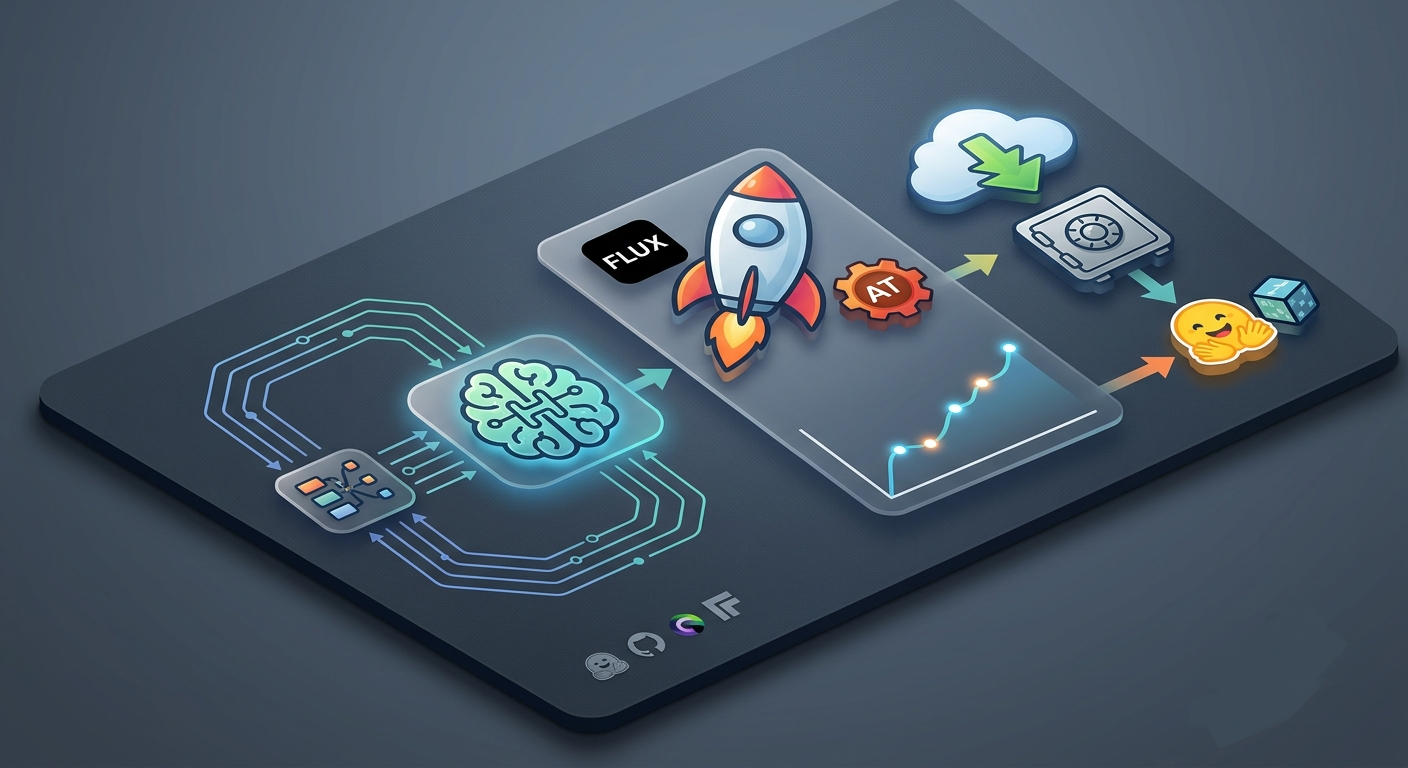
FluxGym simplifies the FLUX LoRA training process by turning a technical workflow into a clear, visual experience. edex ui Instead of relying on command-line instructions, users can prepare their dataset, configure essential settings, and begin training through an organized web interface.
Upload Your Training Dataset
Start by adding the images you want FluxGym to learn from. These images may represent a person, character, product, object, clothing style, environment, or visual concept. A clean and consistent dataset usually helps produce more reliable LoRA results.
Generate and Review Captions
FluxGym can assist with automatic image captioning, helping identify important subjects, clothing, colors, poses, objects, backgrounds, and other visual details. Users can review and edit these captions before training to improve dataset accuracy and model consistency.
Configure Training Settings
Choose the FLUX base model and adjust key options such as image resolution, LoRA rank, learning rate, batch size, epochs, training steps, optimizer, and trigger word. FluxGym presents these settings through simple input fields, making configuration easier for both beginners and experienced users.
Start and Monitor Training
Once the dataset and settings are ready, users can launch the training process directly from the dashboard. FluxGym displays useful information such as training progress, completed steps, elapsed time, GPU memory usage, and status updates throughout the session.
Save and Test the Trained LoRA
After training is complete, the generated LoRA file can be saved and used with compatible FLUX image-generation workflows. Users can test different prompts and strength values to evaluate how accurately the LoRA reproduces the trained subject, style, or concept. FluxGym brings dataset preparation, captioning, configuration, monitoring, and LoRA output into one streamlined workflow. This makes custom FLUX LoRA training more accessible while still giving users control over the settings that influence model quality.
FluxGym System Requirements
FluxGym is designed to make local FLUX LoRA training accessible on consumer hardware, but model training still requires a capable computer and a compatible GPU. peace equalizer Before installing FluxGym, review the following system requirements to ensure stable performance and avoid memory or dependency-related errors.
Compatible NVIDIA GPU
A CUDA-compatible NVIDIA graphics card is the most suitable option for running FluxGym locally. ryubing The manual installation process uses CUDA-enabled PyTorch packages, while newer NVIDIA RTX 50-series GPUs require a compatible CUDA 12.8 PyTorch build and an updated version of BitsAndBytes.
GPU Memory Requirements
FluxGym officially provides low-VRAM training support for graphics cards with approximately:
- 12GB VRAM – Entry-level supported configuration
- 16GB VRAM – Better balance between performance and memory capacity
- 20GB VRAM – More flexibility for demanding training configurations
The selected model, image resolution, dataset size, batch size, LoRA settings and sample-generation options can affect actual VRAM usage. FluxGym’s official project specifically lists 12GB, 16GB and 20GB memory profiles.
Supported Operating Systems
FluxGym provides manual environment setup instructions for both Windows and Linux. n64 emulator It can also be installed through the Pinokio launcher or deployed with Docker, depending on the user’s preferred installation method.
Python and Required Dependencies
A working Python environment is required for manual installation. FluxGym uses a virtual environment and depends on packages from both the main FluxGym project and Kohya-ss sd-scripts. PyTorch, TorchVision, TorchAudio and other required libraries must also be installed correctly before launching the interface.
Sufficient System Memory
Adequate system RAM is recommended because dataset preparation, image captioning, model loading and background processes can consume memory in addition to GPU VRAM. Systems with more available RAM will generally handle larger datasets and multitasking more comfortably.
Available Storage Space
FluxGym requires enough free disk space for application files, Python dependencies, downloaded base models, image datasets, generated samples and trained LoRA outputs. Supported models can be downloaded automatically when training begins, so users should maintain generous free storage on the installation drive.
Updated GPU Drivers
Current NVIDIA drivers should be installed before setting up FluxGym. The GPU driver, CUDA-compatible PyTorch build and hardware generation must work together correctly for training to use GPU acceleration.
Modern Web Browser
FluxGym runs through a local web interface, so a modern browser such as Chrome, Edge or Firefox is required to access its dashboard. When launched manually, the application starts through Python, while a Docker installation can be accessed through the local browser address configured by the project.
Recommended Setup for Better Performance
For a smoother FLUX LoRA training experience, use an NVIDIA GPU with at least 12GB of VRAM, sufficient system RAM, updated drivers and enough SSD storage for models and training files. Users working with higher resolutions, larger datasets or advanced settings should choose a GPU with 16GB to 20GB of VRAM whenever possible.
Important
Training speed and memory usage depend on the selected FLUX model, dataset quality, image resolution, batch size, training steps and advanced optimization settings. Meeting the basic requirements does not guarantee identical performance across every computer.
Step-by-Step FluxGym Training Workflow
FluxGym makes FLUX LoRA training simple by organizing the process into clear stages.
- Prepare Your Dataset
Collect high-quality images that clearly represent the subject, style, product, or concept you want to train.
- Upload Training Images
Add your selected images to FluxGym and remove any blurry, duplicated, or irrelevant files.
- Generate Image Captions
Use the built-in captioning tool to create descriptions for each image. Review and correct the captions before training.
- Select the Base Model
Choose the appropriate FLUX model based on your training goals and available GPU memory.
- Configure Training Settings
Set the image resolution, learning rate, LoRA rank, training steps, batch size, and output name.
- Choose a VRAM Profile
Select the profile that matches your GPU, such as 12GB, 16GB, or 20GB VRAM.
- Start Training
Review the configuration and launch the training process directly from the FluxGym interface.
- Monitor Progress
Track training steps, status updates, checkpoints, and generated samples through the dashboard.
- Save and Test the LoRA
Export the trained LoRA and test it with compatible FLUX workflows using different prompts and strength values.
- Improve the Results
If necessary, refine the dataset, captions, or training settings and run another training session.
Use Cases of FluxGym
Character Creation
Train consistent fictional characters for games comics stories and digital artwork.
Personalized Portraits
Create custom LoRAs that reproduce a person across different poses scenes and styles.
Product Visualization
Generate professional product mockups promotional visuals advertisements and creative scenes.
Art Style Training
Train FLUX to reproduce a specific illustration painting photography or design style.
Fashion and Clothing
Create consistent outfits footwear accessories and original fashion concepts.
Brand Content
Generate branded visuals mascots marketing assets and consistent creative content.
Object Training
Train unique objects vehicles furniture devices or equipment for accurate image generation.
Environment Design
Create consistent rooms buildings landscapes fantasy worlds and game environments.
Supported Platforms of FluxGym
Windows
Install and run FluxGym locally on a Windows computer with a compatible NVIDIA GPU and Python environment.
Linux
Use FluxGym on supported Linux systems through manual installation for flexible local LoRA training.
Docker
Deploy FluxGym in a containerized environment using Docker Compose for easier dependency and application management.
Pinokio
Install and launch FluxGym through the Pinokio one-click launcher without completing the full manual setup.
Web Browser
Access the FluxGym dashboard locally through a modern browser after the application server is running.
NVIDIA CUDA Hardware
FluxGym is primarily designed for CUDA-compatible NVIDIA GPUs including supported RTX graphics cards.
Why Choose FluxGym
Compare FluxGym with traditional gyms and home workouts to find the right fitness experience for your goals.
| Features | FluxGym | Traditional Gym | Home Workouts |
|---|---|---|---|
| Workout Access | ✓ Anytime Access | ! Fixed Opening Hours | ✓ Anytime |
| Personalised Plans | ✓ Included | ! Usually Costs Extra | × Self Managed |
| Equipment Variety | ✓ Modern Equipment | ! Depends on the Gym | × Limited Equipment |
| Progress Tracking | ✓ Digital Tracking | ! Often Manual | × Limited Tracking |
| Trainer Support | ✓ Professional Guidance | ! Limited or Paid | × No Direct Support |
| Workout Flexibility | ✓ High Flexibility | ! Medium Flexibility | ✓ High Flexibility |
| Beginner Friendly | ✓ Yes | ! Depends on Support | ! Requires Self Guidance |
| Community Support | ✓ Active Community | ! Varies by Location | × Limited Community |
| Training Environment | ✓ Clean and Modern | ! Varies by Gym | ! Depends on Home Space |
| Best For | Beginners and Fitness Enthusiasts | Regular Gym Users | Basic Personal Workouts |
How to Install FluxGym
Install FluxGym using the simple one-click method or choose manual and Docker installation for greater control over your local setup.
Recommended Method — Pinokio One-Click Installation
Pinokio provides the simplest way to install FluxGym by automatically downloading the required files dependencies and local components.
Install Pinokio
Download and install Pinokio on your Windows Linux or macOS computer.
- Download the Pinokio application
- Complete the normal installation
- Open Pinokio on your computer
Find FluxGym
Use the Pinokio discovery or search area to locate the FluxGym installation package.
- Open the Discover section
- Search for FluxGym
- Select the FluxGym installer
Install and Launch
Start the installation and allow Pinokio to download all required dependencies automatically.
- Click the Install button
- Wait for installation to finish
- Click Start to launch FluxGym
Manual FluxGym Installation
The manual method is suitable for advanced users who already have Git Python and the required development tools installed.
Open FluxGym in Your Browser
After the local server starts open this address in your browser.
python app.py. Installation commands may change between FluxGym releases.
Frequently Asked Questions
What is FluxGym?
FluxGym is an interface for training custom FLUX LoRA models.
What does FluxGym create?
It creates LoRA models for people products styles and characters.
Is FluxGym beginner-friendly?
Yes its visual interface makes LoRA training easier for beginners.
What is a LoRA?
A LoRA is a model adding custom subjects or styles.
Does FluxGym support low VRAM?
Yes with optimized settings depending on graphics memory and resolution.
Does FluxGym run locally?
Yes it runs locally through a secure browser based interface.
Who can use FluxGym?
AI artists designers developers and content creators can use FluxGym.
How can I install FluxGym?
Install FluxGym easily through Pinokio manual Python setup or Docker.
What is the easiest installation method?
Pinokio usually provides the easiest installation experience for complete beginners.
Can FluxGym be installed manually?
Yes manual installation requires Git Python dependencies and command knowledge.
Does FluxGym support Docker?
Yes Docker offers an isolated setup with cleaner dependency management.
How do I start FluxGym?
Activate the environment then run the required FluxGym launch command.
Why does FluxGym open in a browser?
Because FluxGym uses a local web interface for easier control.
Is internet required for FluxGym?
Internet is mainly needed for setup dependencies and model downloads.
How do I start training?
Upload images add captions choose settings then start model training.
How many images should I use?
Use enough clear varied images to represent your subject accurately.
What images work best?
Sharp high quality images with varied angles lighting and backgrounds.
What is a trigger word?
A trigger word activates your trained LoRA inside generation prompts.
Why are captions important?
Captions help the model understand subjects poses backgrounds and details.
How long does training take?
Training time depends on hardware dataset size resolution and steps.
How can I fix FluxGym errors?
Check error messages dependencies model paths storage and graphics memory.